Banner

Friday, April 30, 2010

Market Your Products on Facebook with PowerPoint

Post and Profit from PowerPoint-made Video ads on Facebook

facebook-logo

If you are a business owner, you might want to friend on Facebook. With 300 million people on Facebook, finding a prospective business pal and a new customer there becomes very possible. The precondition is that you post your products or services properly on the social networking site. As to approaches of marketing, video presentation is a good bet.

Not clear of what video presentation is? A video presentation is a video made out of a PowerPoint presentation. For instance, you create a sales PowerPoint presentation. You want to share it with a friend via Facebook without MS PowerPoint. You DO NOT want any loss of animation, transitions, embedded music or movie clips, nor any distortion of slide pictures.

Since Facebook do not accept PowerPoint in a direct way, you convert it to a flash video, a compatible media format for Facebook, using a third-party conversion program like Moyea PPT to Video Converter. And this is quite decent for small business runners who plan to gain at a slim budget.

Then how to sell your products on Facebook with PowerPoint? Here are several tips. Let’s take a sneak look at them.

  • 1. Set your goal.
    Before you draft up in your sales PowerPoint project, ask yourself a simple question: What is your objective? Is it attractive to potential customers? Is it a brand or going to develop into one? Does it need customer support to accompany by? Having a clear goal in mind, you can build a sales ad with logic.
  • 2. Add photos, media clips & convert to flash video
    Do not forget to include eye-catching photos, media clips to enhance your sales presentation. Once your PowerPoint presentation is made, convert it to a web-friendly flash video before uploading to Facebook. Here Moyea PPT to Video Converter will help. Click here to have a look at how to use it.
  • 3. Link Facebook pages to your company’s site
    Post the video presentation on your business pages of Facebook. The pages are your first stop. They enable you to collect fans like a movie star. Relate your Facebook address to your business name, e.g., http://www.facebook.com/Moyea
  • 4. Invite friends and family to become your Facebook fans
    Who will be your first visitors? Surely your friends and family. Invite them to your Facebook pages. Ask them to support you. And their friends. You know, the average Facebook user has 130 friends on the site. Imagine their power in promoting your products!
  • 5. Update, update & update
    Keep your content updated is vital. You constantly type on Facebook with news and video presentations of your products. Necessary if you do not want to lose your Facebook fans.
  • 6. Think more than selling
    Hard sales will spoil your Facebook fans. The first lesson you need to learn is effective interacting. You need to know them and their actual needs. To listen to them and their advice. You must arouse their interest before a product is sold out. Be friends before customers with your fans.
  • 7. Be patient for profit
    Rome was not built in one day. It takes time to reap. Be patient, friend. Do not expect the number of your Facebook fans soar overnight. Build relationships bit by bit.
  • I hope the seven tips above can help you to the most extent. Wish you a big success in the future!

    Tuesday, April 27, 2010

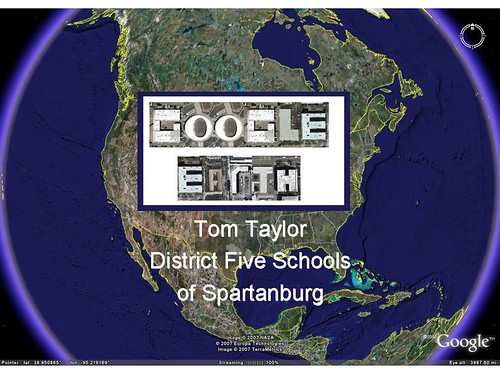
    Add PowerPoint slides to Google Earth

    Slide1

    In mid-March I will be heading to SCETV studios in Columbia for a week of workshops, teaching South Carolina teachers about Google Earth. I do this every year and thoroughly enjoy meeting educators from around the state. Each year I try to change things up a bit, and this year is no different.

    I’m really tired of PowerPoint. Or, more specifically, I’m tired of the laziness of boring bullet points read to an audience. I try to keep these to a minimum in my presentations, preferring to demonstrate actual software rather than spend the entire presentation in PowerPoint. This time I think I’ve found a way to combine both PowerPoint and Google Earth for an effective presentation, and here’s how I’m going to do it.

    My inspiration for this mash-up comes from two sources. First there is this video from a group of students in Taiwan, using Google Earth as a basis for their music video in “Zoom between Trans-ethnicity.”

    The zooming effects are really cool, and illustrate that the GE engine can be used for much more than just earth imagery.

    Fast forward a bit to a month or so ago when I discovered the Prezi demonstration platform. This platform uses zooming as a transitional element between display screens, feeling very much like Google Earth. I had thought I might use this for the workshops, but I actually found an even better method.

    Step One – I opened up my PowerPoint presentation, then went to File and Save As. Instead of a PPT file I selected JPG. This would save all of my slides as individual image files.

    Step Two – I created a folder in Google Earth called “Presentation”

    Step Three – I began adding the slides as image overlays. I would choose a location, orientation, and zoom level for each slide, then would “snapshot” that overlay view.

    Step Four – If the slides were not already in order, I would drag and drop them into the correct position.

    Step Five – During the presentation, turn off any additional layers, including borders, labels, and roads. These will interfere with the slides.

    Step Six – The folder can be saved as a KMZ file for sharing.

    The video clip below demonstrates how this can be used, starting with my opening slide zoomed completely out, and then zooming in for additional slides. You may want to replay the video at least once, as it tends to be smoother the second time through. It’s fairly short.

    Using this technique I can demonstrate one more way that Google Earth can be used, without having to leave the program to go to my presentation slides.

    Friday, April 23, 2010

    More Robust DVD Burning, ISO Producing and New Custom Video Profile Come with Moyea PPT to DVD Burner Pro 3.7

    Press Contact: Steven
    Moyea Software Co., Ltd.
    contact@dvd-ppt-slideshow.com

    Moyea PowerPoint to DVD Burner Pro 3.7 is now available with more powerful capacity in DVD burning and ISO file producing, refined DVD Menu Templates and a new Custom feature for the Video Profile.

    Shenzhen, P.R. China - April 23, 2010 — Moyea Software (http://www.dvd-ppt-slideshow.com), one of the world’s Top 5 providers of multimedia converters, media players, accelerators with respect to PowerPoint, DVD, Video, Flash, and PDF, today announced the release of PPT to DVD Burner Pro 3.7 featuring more powerful capacity in DVD burning and ISO file producing, refined DVD Menu Templates and a brand new Custom feature for the Video Profile.

    "As a 2-in-1 product, Moyea PPT to DVD Burner Pro has long been the best seller on the company’s online store of presentation software. We’re proud of its winning sales,” Said Steven, CEO of the company. “Yet we care more about how it will facilitate its users. The upgraded PPT to DVD Version 3.7 will take the users to a stick-and-span voyage of making DVD and video from PowerPoint."

    As the name suggests, Moyea PPT to DVD Burner Pro is right for professionals who want to convert a PowerPoint presentation to DVD or video and burn to disc without bothering to the loss of original animations, sounds, transitions, movie clips and hyperlinks. Then it becomes a breeze to publish PPT content on TV with a DVD player, or upload to SNS like YouTube, MySpace, Hulu, and more video/DVD platforms and devices, as it was made.

    To support better creation of DVD and video presentations, Moyea PPT to DVD Burner Pro 3.7 holds these outshining features:

    What’s New in Moyea PPT to DVD Burner Pro 3.7?

  • 1. Improved in burning DVD and producing ISO files
  • 2. Enhanced DVD Menu Templates
  • 3. New Custom feature for Video Profile
  • 4. Fixed a few minor bugs
  • Tested features in the PPT to DVD burner include:

  • 1. A Logo tab that allows users to watermark their PowerPoint DVDs with a trademark or an avatar for personalization and protection.
  • 2. A Music tab that lets users to insert a sound or narration for an output DVD slideshow.
  • 3. Convert any version of PowerPoint to either DVD or video with accuracy.
  • Pricing and Availability
    Moyea PPT to DVD Burner Pro 3.7 requires Windows 7/XP/2000/NT/Vista. The regular price is $99.95 (US) per license. For details on Moyea PPT to DVD Burner Pro, please see in the product page http://www.dvd-ppt-slideshow.com/ppt_to_dvd/

    Related Links
    Product link: http://www.dvd-ppt-slideshow.com/ppt_to_dvd/
    Download link: http://www.moyeamedia.com/download/ppt2dvd/ppt2dvd_setup.exe
    E-mail: support@dvd-ppt-slideshow.com

    About Moyea
    Moyea Software (http://www.moyeamedia.com) is an expert software provider g of digital multimedia solutions, branded with converters for PowerPoint, DVD, video and PDF, media players and video downloaders. It focuses on delivering affordable, quality software programs to simplify and enhance your digital experience.