Banner
Showing posts with label ppt to video. Show all posts

Friday, March 22, 2013

How to View PowerPoint on LG Optimus G Pro


LG Optimus G Pro
Optimus G Pro is a large screen smartphone produced by LG. It’s also the company’s first handset with the trendy Full HD 1920 x 1080 screen resolution. Now this model is available in Japan and Korea, it’s expected to roll out in North America in Q2 2013 as well.

Specs
For specifications, the LG Optimus G Pro sports a 5.5-inch Full HD display with 1080 x 1920 pixels and 401ppi. Its high pixel density is one of the best you can currently get. The phone is powered by a 1.7 GHz quad-core Snapdragon processor, which is fast enough for daily use. It has 2 GB of RAM and 32 GB of ROM (with microSD slot up to 64 GB). As to cameras, the rear camera has 13MP and supports 1080p video shooting. The front facing one has 2.1 MP. A giant 3140 mAh battery is equipped with the phone to provide longer standby time.

Highlights
  • Very light and compact for the screen size
  • Flexible design lets you add memory or swap the battery
  • Programmable QButton and an IR blaster allow more usage scenarios
  • Good camera with HDR video abilities
  • Large 3140 mAh battery
Play PowerPoint on LG Optimus G Pro
It’s an enjoyment for watching HD movies and playing games on a phone with such a large HD screen and fast CPU. Besides entertainments, how about doing office work on the phone? Let’s say, how to watch PowerPoint on LG Optimus G Pro? For a handset that runs Android, there are actually several ways to watch PPT. For instance, we can use Office apps or convert PowerPoint to PDF. However, by using these 2 methods, some special effects like background music, transitions, and animations will be totally removed. In order to display PPT on the handset with effects remained, we can convert PowerPoint to Optimus G Pro suitable videos at first, then transfer the videos to the phone.

Thursday, October 13, 2011

How to Show Commercial Presentations on Samsung Stratosphere to Your Business Partners


Samsung Stratosphere, the Verizon branded high-end spec'd Android OS powered smartphone, will launch today, October 13th, for $149.99 after rebate with a new 2-year contract. The release date is closed to iPhone 4S. If you are not an Apple fans, the Samsung Stratosphere will be up your alley.

Samsung Stratosphere™ Official Info Clip

Key features:
  • 4G LTE – customers can expect fast download speeds of  5 to 12 megabits per second (Mbps) and upload speeds of 2 to 5 Mbps in 4G LTE mobile broadband coverage areas
  • Five-row QWERTY keyboard
  • Samsung Super AMOLED™ Screen Technology makes watching movies, viewing videos and playing games come to life, even in bright light and outdoor environments
  • Android™ 2.3 Gingerbread – support for Google™ Mobile Services including Gmail™, YouTube™, Google Talk™, Google Search™, Google Maps™ and access to more than 250,000 apps available to download from Android Market™
  • Samsung 1 GHz Cortex A8 Hummingbird Application Processor
  • Front-facing 1.3-megapixel camera for video chat and 5-megapixel rear-facing camera with autofocus and flash (720p HD playback and 480p DVD-quality recording)
  • Mobile Hotspot Capability – share 4G connection with up to eight Wi-Fi enabled devices or a 3G connection with up to five devices
  • AllShareÔ – enables wireless connectivity through Digital Living Network Alliance® (DLNA), so customers can send multimedia content to other DLNA Certified®-enabled devices such as TVs and laptops
  • Samsung Media Hub – Samsung’s own content service, offering a vast lineup of critically acclaimed films and TV programs for rent or purchase
  • Bluetooth® 3.0 technology – support for headset, hands-free, stereo, phonebook access, and object push for vCard and vCalendar
  • Multiple video file formats supported, including DivX and XviD
  • Wi-Fi Connectivity (802.11 a/b/g/n)
Business features:
Samsung’s enterprise mobility solutions will provide flexibility and connectivity for mobile workforces, ensuring that users are able to operate more efficiently on the go.
  • Microsoft® Exchange ActiveSync® (EAS) – communicate directly with your Microsoft Exchange Server enabling push email, calendar and contacts
  • Support for Cisco AnyConnect 2.1 SSL VPN – supports access to private corporate networks using industry-standard VPN protocols with enhanced security of 4G LTE networks helps users tap into VPN networks with no waiting
  • Encryption Services – users and IT administrators can initiate a remote wipe command to erase private information
  • Support for Sybase Afaria® – MDM capabilities allow an integrated experience for the end user in the event it is required by their IT department or corporate policy
Pricing and data packages:
  • The Samsung Stratosphere will be available on Oct. 13 in Verizon Wireless Communications Stores and online at www.verizonwireless.com for $149.99 after a $50 mail-in rebate with a new two-year customer agreement.  Customers will receive the rebate in the form of a debit card; upon receipt, customers may use the card as cash anywhere debit cards are accepted.
  • Customers that purchase a Samsung Stratosphere smartphone will need to subscribe to a Verizon Wireless Nationwide Talk plan beginning at $39.99 for monthly access and a smartphone data package starting at $30 monthly access for 2 GB of data.
Samsung Stratosphere is alluring for business men. One of its highlight is the strong business features. Besides all the functions the list includes above, you can also upload Microsoft Office documents to Samsung Stratosphere by converting files to images and videos. Show products and plans presentation to partners on phones anywhere at anytime is no longer difficult. Professional PPT to Video Converter will bring a high quality video with all original audios, videos, animations and other settings you insert before on PC. Here is a professional PowerPoint to Video Converter you can have a try.

Enjoy your business day with Samsung Stratosphere!

Friday, April 22, 2011

Up to 56% Discount to Celebrate Easter 2011 from Moyea Software

It’s never been such a good chance to buy a professional PPT converter or PPT burner. For now, to celebrate this weekend’s happy Easter Day, Moyea Software has officially announced an offer of up to 56% discount for its PPT series. This activity is held from April 23rd to April 25th. During this period, everyone has the access to get the discount if he fills in the coupon code.

About the Activity

Customers will get a $20 discount for these products: PPT to DVD Burner Pro, PPT to DVD Burner Lite, PPT to DVD Burner Edu, PPT to Video Converter Edu, PPT4Web Converter. For PPT to Video Converter Edu, the discount is 56%, which is the highest of all. The only one exception is $10 discount for PPT to Video Converter. During the activity period, there will be a “Coupon Code” blank on the purchase webpage after clicking “like” on the activity page, then fill in the coupon code (MOYEA424) and the price will reduce automatically by the discount.


Brief Introduction of the products

PPT to DVD Burners: All inclusive tools to burn PowerPoint files to Blu-ray discs and DVD discs for viewing on TV using Blu-ray/DVD players.

PPT to Video Converters: Easy-to-use smart tools to convert PowerPoint files to any popular video and audio formats, like AVI, WMV, MPEG, MP4, MP3, AAC, etc., with all the original PowerPoint elements being perfectly preserved.

PPT4Web Converter: An initiative program that converts PowerPoint files to flash video (FLV, MP4, MOV, 3GP, 3G2), binging easy access to websites like YouTube, MySpace, and even personal blogs and podcasts.

Availability and Links

Moyea Software offers both free trial version which can be downloaded and used via the product download link and registered version with prior technical support.

Company link: http://www.dvd-ppt-slideshow.com/

Activity link: http://www.dvd-ppt-slideshow.com/purchase/

Contact

Steven

CEO of Moyea Software Co., Ltd.

Email: contact@dvd-ppt-slideshow.com

About Moyea Software

An award-winning and professional multimedia software provider, owning a professional development team who are always in pursuit of product excellence and providing a wide range of products as multimedia solutions for business and education as well as for daily life. Products include PPT to DVD Burner series, PPT to Video Converter series, PPT to PDF Converter and PPT to SWF Converter series.

Thursday, December 23, 2010

Your Christmas Gifts Could Also Be Out of the Ordinary

When we were children, we all dreamed that the mythical gift bringer Santa Claus dressed in red brought our long-cherished gifts on Christmas Eve. When we are grown-up, we know that there is no Santa Clause at all, but begin to play the part of the Santa Clause, so exchanging gifts turns to be a must-do thing.

Choosing Christmas gifts is a hard task to do! There are so many different gifts out there and it is always difficult to find the perfect one for each member of your family. In any case, make your Christmas gifts all by yourself is never out of date. For example, we can make some PowerPoint DVDs or videos to give our friends or family members. It is reported that Moyea PPT to DVD Burner Pro will be sold at a super-low price - $19.95 – on December 23 and 24, nearly saving $80.00 for you compared with its usual price.

First of all, let us share some common and popular Xmas present ideas, including but not limited to:

1. Preparing some gift baskets full of fruit are incredible gifts for families to share.

2. Collect some music that the family would be able to play together. Personalized songs are the best!

3. Purchase or weave hats, gloves, mittens and scarves for the entire family.

4. Make some homemade cookies or cakes that the family can share.

5. Daisies, roses, orchids - any type of flower at all would be fantastic for the holiday season.

6. The best way to a girl’s heart is through chocolate. Truffles, boxes, bins, tubs - any form will do!

7. Tickets to comedy show or movies are a great gift for anyone and it is something you both can do together!

8. Fill a movie gift basket with some DVDs the family can enjoy as well as popcorn and candy.

9. Last but not the least, memories are a precious thing; frames pictures make fantastic gifts for families. What’s more, you can also make a PowerPoint slideshow with those pictures. To be better, you can add your greetings, wishes, background music, video, animations, and transitions to your presentations.

If you plan to share it with other friends via Internet, you can convert the PPT files to video, or burn it to DVD and wrap it carefully before sending them to your friends and family far away. It is indeed a cool idea to make a PowerPoint DVD or video for your family and friends.

Now that you have a few tips and tricks for some Christmas gift ideas, why not go ahead and do something right away. Researching your gifts before purchasing them, for some Christmas online sales to save yourself some cash!

Best regards and Merry Christmas!

Monday, December 6, 2010

How to Play PowerPoint Presentations on Galaxy Tab with Music, Video & Effects Preserved


As Apple iPad is about to sell its 10 millionth if no total collapse in sales happens, Samsung Galaxy Tab has surpassed one million just 2 months after it launched, leading the electronics giant to increase its end of year sales target to 1.5 million units.

With only 380g in weight, Galaxy Tab is much easier to carry than iPad (Wi-Fi + 3G model: 730g), which makes it more appropriate to give presentations to your audiences, students or customers at anywhere anytime.

You can find many PowerPoint presentation applications for Andriod now, such as Documents to Go and ThinkFree Office Mobile for Android. However, if you want to preserve all the original elements (including animations, slide transitions, video clips and audios) of your PowerPoint presentation or slideshow, it is recommended to use a PowerPoint to video converter to make a conversion from PowerPoint file to video format. As far as I know, Moyea PPT to Video Converter and Leawo PowerPoint to Video Pro are the most professional products in this area.

Let’s take Moyea PPT to Video Converter for example:

Step 1:
Download and install Moyea PPT to Video Converter from http://www.dvd-ppt-slideshow.com;

Step 2:
Open this PowerPoint to video converter, and click “Add” to import your presentations and slideshows.


Step 3:
Click “Settings”. Set the output format as “HD MPEG4 Video (*.mp4)” and video size as “1440x1080” and then click “OK” in the pop-up “Profile” pane.


Step 4:
Click “Start” to begin the conversion progress.

Till now, you can easily transfer the output video to your Galaxy Tab, and show the video presentations or slideshows to your family, friends, colleagues, classmates or customers. What’s more, you can also upload the video to video sharing-sites like YouTube to share with more people.

Thursday, November 25, 2010

Moyea Starts Its Black Friday Deals by Giving Away SWF to iPhone Converter for FREE


Have a nice Thanksgiving Day, everyone!

It is really a good day for us to express our thanks to everything in the world.

Moyea Software, as a professional media converters software producer, also expresses thanks to all its customers by giving away SWF to iPhone Converter for free on Thanksgiving Day. If you want to convert your Flash (*.swf) files to video for playing on your iPhone, do not miss such a great opportunity! This Giveaway will only last 24 hours, so you should seize time if you want one! To participate in the giveaway, go to http://www.moyeamedia.com/software-giveaway.

SWF to iPhone Converter Giveaway is only a small part of Moyea’s Thanksgiving, Black Friday, Christmas & New Year Sales which last from Nov. 21, 2010 to Jan. 8, 2011. Each week, a featured product will be given away or sold at lowest price (incredibly low price). So, if you don’t want to miss any giveaway or lowest price sale, like Moyeasoft on Facebook or follow Moyea_Software on Twitter!

In addition, almost all products (including PowerPoint to video converters, PowerPoint to DVD converters and SWF to video converters, etc.) of Moyea Software will be given up to 50% discounts in this period.

What’s more, free Thanksgiving PowerPoint templates and Christmas PowerPoint templates are also available for free.

If you have not prepared your Thanksgiving gift for your friends or family, why not catch this opportunity?

Actually, you can also make your own video easily from PowerPoint presentation with Moyea PPT to video converter and upload it to YouTube, I’m sure your Thanksgiving greetings will be unique and impressive.

Again, Happy Thanksgiving!

Friday, October 29, 2010

Get Flash to Video Converter for Free!


For its Facebook Fans, Moyea Software has started its Halloween Special Offer:
From now to Nov. 30, you can download Halloween Flash and PowerPoint templates for free by being its Moyeasoft Facebook Page fans.
On Oct. 31 & Nov. 1 (Paciffic Time), you can win Moyea SWF to Video Converter Std's registration code for free and buy Moyea's competitive products with large discounts:
ProductPPT to Video ConverterPPT to DVD Burner ProSWF to Video Converter Pro
Original Price$49.95$99.95$99.95
Halloween Pirce$14.95$49.95$49.95
Learn MorePowerPoint to VideoPowerPoint to DVDFlash to Video
Free TrialPPT to Video PPT to DVDSWF to Video
Get It NowGet It NowGet It NowGet It Now

What you need to do is just to like MoyeaSoft Facebook Fan Page.
You can find more details about the giveaway and promotion on Moyea's Software Giveaway Page.

Have a good Halloween!

Wednesday, March 3, 2010

7 Best Ways To Convert PowerPoint Presentations to Video

You might look for a tool to convert PowerPoint to video when you have a cool presentation to share on YouTube, when you need to put a business presentation on iPhone, when you are about to transfer a PPT course to another computer not compatible, yet without an effect lost - Original specials like animations, transitions, narrations, audio and video clips get fully retained.

Google collects a wealth of PowerPoint to video solutions. And I have tried and tested a bulk of 30 from the first 10 pages for the keyword "convert PowerPoint to video", and finally summed up the top-ranked 7 among them, shown as below.

7 Best Ways to Convert PowerPoint Presentations to Video

1. Dedicated PPT to Video Conversion Software

Many third-party shareware can help convert PowerPoint presentations to video files. Take Moyea PPT to Video Converter for example. The commercial software lets you convert a PowerPoint presentation to LOSSLESS video in 100+ file formats, e.g. ASF, AVI, FLV, WMV, MPEG, MP4, MOV, 3GP, 3G2, etc.

Convert PowerPoint to Video with Moyea PPT to Video Converter

To convert a PowerPoint presentation to video with Moyea PPT to Video, do these 3 steps:

  • Step 1 - Install the PowerPoint to video converter and import the presentation(s) that you want to convert.
  • Moyea PPT to Video Converter - convert PowerPoint to video

  • Step 2 - Select an output video format you need. You can also customize video profile parameters to be perfect fit.
  • Step 3 - Click "Start" to convert the presentation to video.
  • Pros: Most commercial PPT to Video converters are able to keep all the original PowerPoint components such as animations and sounds to an output video, making it a comfort to upload your presentation to YouTube and other social media nets like blogs, podcasts, as well as to view it on your iPod, iPhone and Blackberry.

    2. Camtasia Studio

    Camtasia Studio is a popular screen recorder developed by TechSmith and capable of creating quality videos out of PowerPoint presentations.

    Convert PowerPoint to Video with Camtasia Studio

    Here follows a simple guide on how to make video slideshow with Camtasia Studio 6.1:

  • a. Download and install Camtasia Studio on your local computer.
  • b. Open the program, and select Record PowerPoint in the Task List. MS PowerPoint prompts up.
  • c. Open the PowerPoint presentation to record. Set the recording options from the PowerPoint Add-in Toolbar.
  • d. Then click the red Record button to enter the presentation.
  • e. Press Click to begin recording button. When finish recording, specify a name and location and save as *.camrec file.
  • Catasia Studio - PowerPoint to video

  • f. Continue to edit the recording. Select the slide size, arrange the transitions, add effects, or edit audios.
  • g. Produce a video in a sharable format (WMV, MOV, AVI…)
  • 3. Adobe Captivate

    Another hot video capture app for creating PowerPoint video is Adobe Captivate. Take Adobe Captive 4 for example.

    Convert PowerPoint to Video with Adobe Captivate 4

  • I. Download and install Adobe Captivate 4 on your computer. Open the program, in the main interface, click From MS PowerPoint in the Create Project tab to select a PowerPoint file to convert.
  • Adobe Captivate 4 - Create from MS PowerPoint

  • II. Customize the new PowerPoint project by adding an audio file, redefine a slide timeline, set video quality, etc. Click OK to start converting the file to SWF.
  • III. Edit the slides in the left Slide Tasks panel. Once ready, click the Publish ribbon to enter the Publish interface. In the prompt up, select Media, set the media type as "Video (*. avi)" and type a title for the video project.
  • Adobe Captive 4 Convert PowerPoint to AVI

  • IV. The SWF to AVI conversion starts. Finally, you will get an AVI video based on your presentation.
  • Cons: Adobe Captive 4 converts a PowerPoint presentation to AVI only. If you want to convert it to other video formats, it won’t help.

    4. Windows Movie Maker

    Windows Movie Maker is free for Windows XP or Vista users. It lets you create a home movie out of texts and images.

    Convert PowerPoint to Video with Windows Movie Maker

    To make a video from PowerPoint, you need to save all the slides in your presentation as like *.jpg or *.png.

  • a. Go to Office (in PowerPoint 2007) or File (in PowerPoint 97-2003)-> Save As -> Other Formats, in the popup Save As box, select the type to either of the above graphical formats.
  • b. Then choose to export every slide as the specified picture format.
  • c. A folder containing the exported slides with the same name of the original presentation is generated. Open Windows Movie Maker, and import the separate slides to collections one by one.
  • d. After that, drag all the imported slide images and drop to Storyboard. If you wish, right click a slide image to add video effects for it.
  • e. Finally, go back to the File menu, and save the slide collection as movie file.
  • Cons - all the dynamic effects (like audio or video clips) in the original presentation are lost in the generated movie.

    5. Microsoft Photo Story 3

    Microsoft Photo Story 3 is only free available for Windows XP users. If you are a qualified user for this, then download and install Photo Story 3 for Windows on your PC.

    Convert PowerPoint to Video with Microsoft Photo Story 3

    Similar to that in Windows Movie Maker, you have to save each single slide to *.jpg or *.png for Photo Story 3. Then import the pictures to the program, edit it by adding a title, an effect, a narration, or background music for output video.

    Photo Story 3 for Windows PowerPoint slides to video

    Once it is ready, proceed to the output type. It will be generated to a video in WMV. You can save the WMV file for playback on your computer, in Email, or for playback on a pocket PC or a Smartphone with Windows Media Player 10 Mobile.

    Cons - Again, all the animated elements including audios, movie clips and transitions in the source PowerPoint presentation won’t appear in the WMV file.

    6. Microsoft PowerPoint 2010

    One of the most significant features in the upcoming PowerPoint 2010 is Save As Video. That is, you can build a project in PowerPoint 2010 and save it as WMV without a third-party converter.

    Convert PowerPoint to Video with PowerPoint 2010 Beta

    To convert your PowerPoint 2010 presentation to Video, perform the following steps:

  • a. Go to your PowerPoint 2010 presentation.
  • b. Select Office button > Share option > Create a video.
  • c. Set an effect for output video. Under create a video, set the output quality and the transition time between slides.
  • d. Click Create Video button.
  • You will get a video with a file extension of .wmv.
    Cons: PowerPoint 2010 supports only WMV as output video format. If you want to convert a PowerPoint presentation to web-friendly FLV, MP4, it won’t work.

    7. QuickTime movie for Mac PowerPoint

    For Mac PowerPoint users, there is a "Make Movie" (QuickTime Movie) feature.

    Convert PowerPoint to Video with Mac PowerPoint

    Actually, the movie is a slide show that can run on any application that supports QuickTime movies. Also, note that transitions in the original presentation may play differently in the QuickTime movie, and that animations will be completely missing in the movie. You’d better re-save it with QuickTime Pro.

    From PowerPoint to video, your presentation has become more accessible on Internet and on the go with such a wide selection of convenient software applications. Easy job, enjoy it!

    Tuesday, January 12, 2010

    How to Get More Traffic from Youtube with PowerPoint

    YouTube, now the world’s largest free video hosting site, is also a great tool for E-marketing. When mentioned a video, the first idea that flashes in most minds is nothing but the all-mighty YouTube. You know every day, there are millions of netizens surfing on YouTube, the heaven of videos, to search, watch, share, upload or download a favorite clip. If you have a website, and an account on YouTube, you would probably gain a great traffic from that to your site. YouTube’s free video sharing along with the enormous network of visitors is a perfect consideration to promote products and services on your site.

    Then how to maximize the traffic of your website by a free video ad on YouTube? Here are a set of useful tricks for you:

    First of all, create a definite video with PowerPoint.

    You can use a digital camera to capture some pictures or video clips. Furthermore, you can take MS PowerPoint, which hosts a dazzling collection of animated effects, to make a video advertisement that is more amazing and organized. I see many PowerPoint generated videos posted on YouTube, some with a logo of a brand, some with a site URL at the end, some even embedded with a movie clip, and they look the same professional yet more creative. And you can try this innovation of video making. Personally, I recommend you try some reliable conversion software (like Moyea PPT to Video Converter) to brief the process from PowerPoint to video.

    OK. Let’s go back to the very content of video ad making. Pay attention to these:

    1. Name the video nice.

    Think before compose on PowerPoint. What is the objective of this video presentation? What is an appropriate name for the video ad? How can it capture your potential customers at the first sight? Things like that do deserve your careful analysis. A nice name that is informative and has good rank in Google (and other search engines like Yahoo, MSN live) will work wonder. Exercise your imagination to make an eye-catching name for your YouTube video. The key is to get your audience involved. You can use an interrogative beginning with “What” or “How” or anything attractive to arouse their curiosity.

    2. Use right PowerPoint template.

    You should know the preference of your target audience first. If your video slide show is targeted at professionals, then take a formal PowerPoint template rather than a casual one. If it is for kids and youngsters, you can pick up a cool colorful tune.
    Google one at the Internet, like Free PowerPoint Template Download, or make a distinctive template yourself.

    3. Organize the message in your presentation.

    Specify a focus of your video ad. Then try to give clear and concise description of the focus. Take advantage of the animations and wipes in PowerPoint. In addition, you can insert some relevant photos, sounds, clip arts, or even movie clips to colorize your presentation. Before finalizing it to video, check the whole presentation and see if it contains the very message you want to convey.

    4. End the video with a teaser trailer writing your site URL.

    The video is made to increase visits of your website. While promotional info that is too obvious in the video may cause a force-out from YouTube, you can put a subtle teaser trailer, writing the URL of your website at the end of the video. This will bring more chances to publicize your site.

    5. Trim the video slide show within 5 minutes.
    Don’t test the patience of your audience. No matter how perfect the content is, an over-long video show will weary its viewers. Measure the timing (slide transitions) in your presentation, and ensure it is no more than 5 minutes in total.

    6. Watermark the video with your company/site logo.

    Add a watermark on each slide to identify yourself, brand your company or site, and protect your video slide show from prying hands.

    After your ad PowerPoint presentation converted to video, you can forward to

    The second step - upload the video ad to YouTube with your account.

    Put your video on YouTube and just leave it there? No, never stop unless you don’t expect a winning traffic from it!

    There is still a lot of work to do for a satisfying achievement. Run your brains to make your video one of the top on YouTube. Only does your YouTube video win a sound stance among SERPs (Search Engine Results Page), can it attract more traffic to your relevant website.

    Here follows several tips for increasing visits of your YouTube video:

    a. Post your YouTube video to all the blogs, Podcasts, websites of yours and others. Link it to anywhere available. Exact practice: copy the Embed code of your YouTube video to where you want to insert.
    b. Email it to all your friends and clients. YouTube allows such “Email to a friend” action. The more, the better.

    OK. Just try your best to promote your video ad on YouTube. Never give up, even it is not that satisfying at first. Good luck!

    Wednesday, January 6, 2010

    Microsoft Is Left Behind by Moyea on PowerPoint to Video Conversion

    Press Contact: Steven
    Moyea Software Co., Ltd.
    contact@dvd-ppt-slideshow.com

    Dedicated PowerPoint to Video Converter developed by Moyea Software now upgrades to Version 1.8 at the beginning of the New Year 2010, featuring robust support for PowerPoint 2010 beta and detection of installed PowerPoint versions.


    Shenzhen, P.R. China — January 4, 2010
    – Moyea Software (http://www.dvd-ppt-slideshow.com), a developer specialized in multimedia conversion tools including DVD, Video, Flash and PowerPoint, today announced the New Year’s first release of PPT to Video Converter - Version 1.8, adding support for PowerPoint 2010 input as well as flexibility to choose an installed PowerPoint version for conversion.

    PowerPoint from 2000 to 2007 takes in video of certain file formats (e.g. ASF, AVI, MPEG, WMV), yet the authoring program itself can get into video that is convenient for online distribution. With the expertise PowerPoint to Video tool, Moyea Software brings a breeze to PowerPoint users of 2000/2002/2003/2007 who want to create a high quality video from their presentation. The same way it works for PowerPoint 2010 beta, the latest on-going Microsoft PowerPoint version that claims to save a presentation to WMV. However, Moyea PPT to Video Converter presents more capability in video slideshow making than PowerPoint 2010. Beyond WMV, it can turn a compelling presentation to 22 other formats of video, i.e. ASF, AVI, DAT, DV, FLV, MOV, MP4, MPG, 3GP, 3G2, TS, VOB, RM, RA, MKV, MKA, Wii AVI, Wii MOV, NDS DPG, NDS DPG2, NDS DPG3 and NDS DPG4.

    According to the latest Version 1.8, Moyea PPT to Video users can choose any installed version of PowerPoint (2000 and later) for converting to video. By reshaping a PowerPoint file to seamless video, the tool expands the way people interact with each other via in-person presentation, through a fixed computer desktop, to another without PowerPoint or with a different one, merely with a media player.

    The Windows-based PowerPoint to video conversion program includes these 7 shine points:

  • 1. Convert PowerPoint to video compatible with YouTube, iPod, iPhone, PSP, Zen, Zune, Pocket PC, Xbox 360, Blackberry, etc
  • 2. Keep original dynamic elements like animations, transitions, sound tracks, movie clips, action buttons and internal links
  • 3. Multi-lingual UI in French, German, Italian, Japanese, Simple and Traditional Chinese
  • 4. Add new input support for PowerPoint 2010 beta
  • 5. Allow converting under any installed version of PowerPoint
  • 6. Enhanced system stability for fast and precise conversion
  • 7. Batch processing of up to 12 PowerPoint files
  • Pricing and Availability
    Moyea PPT to Video Converter 1.8 works well on Windows 7/XP/2000/NT/Vista. Regular sold at $49.95 (US) per license, it is now on Christmas sales for $39.95 only. An extra gift, i.e. Office to PDF Converter (worth $24.95) will be offered at any purchase of the product. For details of the holiday promotion, see in http://www.dvd-ppt-slideshow.com/promotion/christmas.html

    And more about Moyea PPT to Video Converter, please visit the product page http://www.dvd-ppt-slideshow.com/ppt-to-video/

    Related Links
    Product page: http://www.dvd-ppt-slideshow.com/ppt-to-video/
    Direct download link: http://www.moyeamedia.com/download/ppt2video/ppt2video_setup.exe
    E-mail: support@dvd-ppt-slideshow.com

    Thursday, November 19, 2009

    How to Convert a Presentation to WMV with PowerPoint 2010

    Circumstances may arise that require you to convert your presentation to video for posting to the web, viewing on portable devices such as the Zune, or making it so that the user doesn’t need PowerPoint to watch the presentation.

    1. Open the desired PowerPoint 2010 presentation.

    2. Go to the Ribbon, click File and select Share.

    3. Under the File Types section, select Create a Video.

    4. In the far right pane, select the quality of video that you wish to create.

    5. In the far right pane, select the whether you want to use Recorded Timings and Narrations.

    6. Finally, select the number of seconds to spend on each slide and click the Create Video button.

    7. The Save As window will appear. Browse to the location that the video file is to be saved to. Input a name for the file and click the Save button.


    powerpoint to dvd|convert powerpoint to video|ppt for web|burn powerpoint to dvd|ppt to dvd|convert powerpoint to dvd|powerpoint to video|powerpoint to flv|powerpoint to pdf|free powerpoint templates|powerpoint tips|free powerpoint backgrounds

    Monday, September 7, 2009

    PowerPoint Tips:Rip a Audio from PowerPoint

    When you are captured by a PowerPoint presentation embedded with vibrant music, would you like to collect the music and feed it to another device like your private MP3 if necessary? I suppose many people have such experience. Maybe a good song, a good painting, a good antique or else, which absolutely deserves your collection. Here we will talk about how to rip a good audio track from PowerPoint presentation.
    Since Microsoft PowerPoint offers no direct way to extract audio files from PPT presentations, we would employ another conversion tool, i.e. Moyea PPT to Video Converter, to rip the audio sound(s) from the source PowerPoint. The professional program can rip the audio stuff without any effect lost.
    Let's see how to extract audio file from PowerPoint step by step.
    Step 1 Run the program and add PPT files
    Start Moyea PPT to Video Converter after you have it installed on your computer. To import a PowerPoint file, click Add on the main panel of the program.
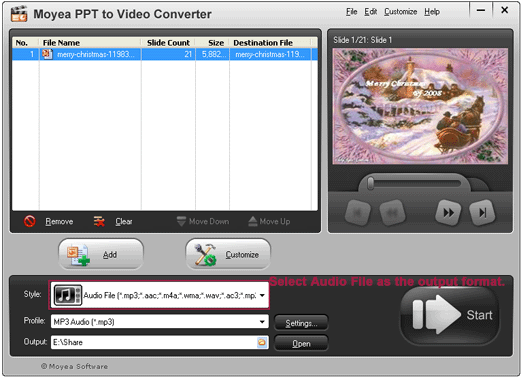
    Step 2 Set the style to Audio File and specify an output path
    In the list of Style, set the output format as Audio File. You should see the profile field changes accordingly to MP3 Audio (*.mp3). In the Output field, specify a proper location on your hard drive for the output audio.

    rip audio from PowerPoint

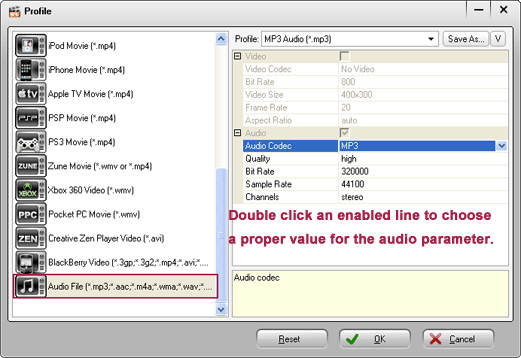
    Step 3 Make advanced settings for profile parameters
    Click Settings next to the Profile field to manually set the profile parameters. You are allowed to set items for audio. Select the appropriate value from the preset parameters as you need or follow the default settings. Once set, click OK to save your current settings.

    extract music from PowerPoint

    Step 4 Customize the output effects
    In the main panel, click the Customize button to customize the output video. There are five panes - Timing, Music, Audio, Slide and Conversion for custom. Set each pane as necessary.
    Step 5 Convert to extract the audio file from PowerPoint
    When all the settings are done, hit the Start icon to start converting. The conversion process is clear in the task list. The result should be an audio file with .mp3 extension. Click the file link to enter the preset folder for output.
    Quick and easy, isn't it? Now you can play the audio file with iTune or else audio players to check its effect. You can also save the nice music to a recorder for permanent playback.


    Related:

    PowerPoint to DVD PowerPoint to Video PowerPoint to FLV

    PowerPoint to DVD for Education PowerPoint to Video for Education

    PowerPoint for Web PowerPoint to PDF PowerPoint to DVD Burner

    Convert PowerPoint to Video PowerPoint to DVD Converter

    Share Your Ideas Freely with Mobile PowerPoint Presentation

    Summary:Mobile PowerPoint presentation is going to be the next wave of technology in the industry of consumer electronics. Imagine your mobile phone with a 20-inch screen!

    It's a busy world. It's a mobile world. And it's going to be the time that mobile PowerPoint presentation makes its way into the mass market.

    The idea of mobile presentation technology is based on Windows and cell phone. It is aimed to project your mobile presentation to merely a flat surface. The revolutionary technology solves the problem of small screen on a cell phone. Due to the technology, users can view bigger and better images of emails, movies, videos and Internet news with a handy phone. The need for mobile presentation will definitely increase as PCs and cell phones continue to converge.

    mobile PowerPoint presentation sample 1

    projector mobile phone

    While mentioning a presentation, we cannot help thinking of PowerPoint, the best known authoring tool of content. Combine the merits of PowerPoint and mobile presentations, we conclude to the new concept of mobile PowerPoint presentation.

    Who can benefit from mobile PowerPoint presentation?
    Mobile PowerPoint presentation is friendly to all cell phone and PowerPoint users, especially to business professionals on the go.
    When you have made a business PowerPoint presentation, and have to lecture it to targeted audience at another place, you can save it on a handy phone instead of a desktop computer. A business PowerPoint presentation can walk and be widely spread as far as you can go.

    The next question is
    How to make a mobile PowerPoint presentation?
    A mobile presentation is no longer a dream but a reality for users of Windows Mobile. To put it another way, you can view and rehearse your presentation on travel if you use a Windows Mobile phone.
    But what if you are not using Windows Mobile? Still you can enjoy a mobile slideshow at large. This can be achieved by converting PowerPoint to video that is mobile-compatible. You may use Moyea PPT to Video Converter, a versatile PowerPoint to video solution designed to easily and precisely watch a PowerPoint slideshow at anytime and anywhere.
    After a video presentation is successfully formed, you can connect it to your cell phone and watch the mobile slideshow with ease.

    And if you want to
    Share your mobile PowerPoint presentation in a large screen,
    You should have a projector (above-mentioned as mobile presentation technology) built in your mobile phone.
    Instead of watching a PowerPoint presentation on a traditional home TV or with a teaching projector, you can play it on a projector mobile phone. Point the device at any wall, and you've got it all. This will surely enrich your visual pleasure in an amazing PowerPoint presentation – handy, flexible, yet no less professional at all.

    The following picture illustrates how a projector mobile phone works:

    mobile PowerPoint presentation sample 2 Get a mobile PowerPoint slideshow

    No matter it comes to a room lesson or an outdoor lecture, a business meeting or a weekend party, you can take full use of the mobile PowerPoint presentation. It offers a simple way for you to create a mobile PowerPoint presentation that walks your ideas and wows your audience at most.


    Related:

    PowerPoint to DVD PowerPoint to Video PowerPoint to FLV

    PowerPoint to DVD for Education PowerPoint to Video for Education

    PowerPoint for Web PowerPoint to PDF PowerPoint to DVD Burner

    Convert PowerPoint to Video PowerPoint to DVD Converter

    Use PowerPoint to Promote Your Business

    A hard time has fallen on the earth. The financial storm from Wall Street this September has been changing the whole world. Yet along with big changes are always enormous chances.

    As an ambitious business owner, you must have considered grabbing the hot opportunity to make more profits in this chilly winter. Then what is your ace in the competition? Cutting redundant cost and workforce is a must. Another crucial element is to enhance the publicity of your company and products. This can be advanced by PowerPoint. Maybe it seems a bit odd. But believe it or not, PowerPoint is definitely perfect to boom your business.

    Let's see why you need PowerPoint and how PowerPoint brings remarkable traffic to your business.

    Why do you need PowerPoint?
    Nowadays, PowerPoint has been widely used by a huge number of companies in many countries. Microsoft Office PowerPoint features quick creating of high-impact, dynamic presentations while integrating workflow and ways to easily share information. Using the chic animations and graphics in PowerPoint, you can easily create nice-looking presentations of your company profile, key products, promotion policies, etc. That is the very initial step for advocating your business.

    How does PowerPoint bring remarkable traffic to your business?
    Eager buyers of your products are looking for you all the time. You must appear anywhere as they expected. So make a pleasant presentation of your company profile and products, and post the PPT ads of your products where they are most likely to get you.
    Your ads by PowerPoint are great for:

    1. Web sharing. Before selling a product, you should share with your buyers the merits of the product. Hence you can make use of www.slideshare.net, the world's largest slide-sharing site. Display your presentation with company info and selling products there to get your business known by more. The illustrative slide description of your firm and products are quick and easy to all customers visiting that site. It is absolutely a free ad to your brands.
    2. Online video-show. Many customers are prone to video play that is more professional-looking and space-saving. In such case, you can convert your PPT ads to fantastic video using a proper program like Moyea PPT to Video Converter. After that, upload the video-show to YouTube, the leading video-sharing site in the world, to earn tremendous traffic. Or you can post it on other sites as necessary. A wonderful PPT video surly attracts buying customers of your products or service.
    3. Outdoor TV show. This may cost some, yet not very much from a long-term view. Take advantage of public places like entertainment gardens, outdoor cafés, bus stops, sports squares and even business streets to show your business. That is, to put your PPT ads on outdoor TV at the mentioned places so that more people will watch you and your products. One thing you need to do first is to burn your great presentation onto DVD for playing on TV using a conversion tool like PowerPoint to DVD Burner. As the saying goes, 'Seeing is believing', customers often trust in what they see and hear themselves. I dare say you will draw great publicity in such a straight way.
    4. Store DVD show. Shopping is one of our daily routine. Notice the TV section of a store or a supermarket? That is another carrier of your business. Ask the one in charge if you can put your PPT ads (also required to convert to DVD with a tool like PowerPoint to DVD Burner) on the playing TV samples. Your buying customer might find you out of one shopping at such place.
    5. Trade Fair. If you are an exhibitor in your industry, PowerPoint is also very good to present your company profile and products. A spiffy slide show about your business will really help to convince your buyers. In addition, you'd better make DVD copies from the presentation (using PowerPoint to DVD Burner)for easy distribution to potential customers.

    Got it? Take any of the techniques listed above that fits for you best. Make full use of the powerful PowerPoint to explore your profits and boost up your business.


    Related:

    PowerPoint to DVD PowerPoint to Video PowerPoint to FLV

    PowerPoint to DVD for Education PowerPoint to Video for Education

    PowerPoint for Web PowerPoint to PDF PowerPoint to DVD Burner

    Convert PowerPoint to Video PowerPoint to DVD Converter